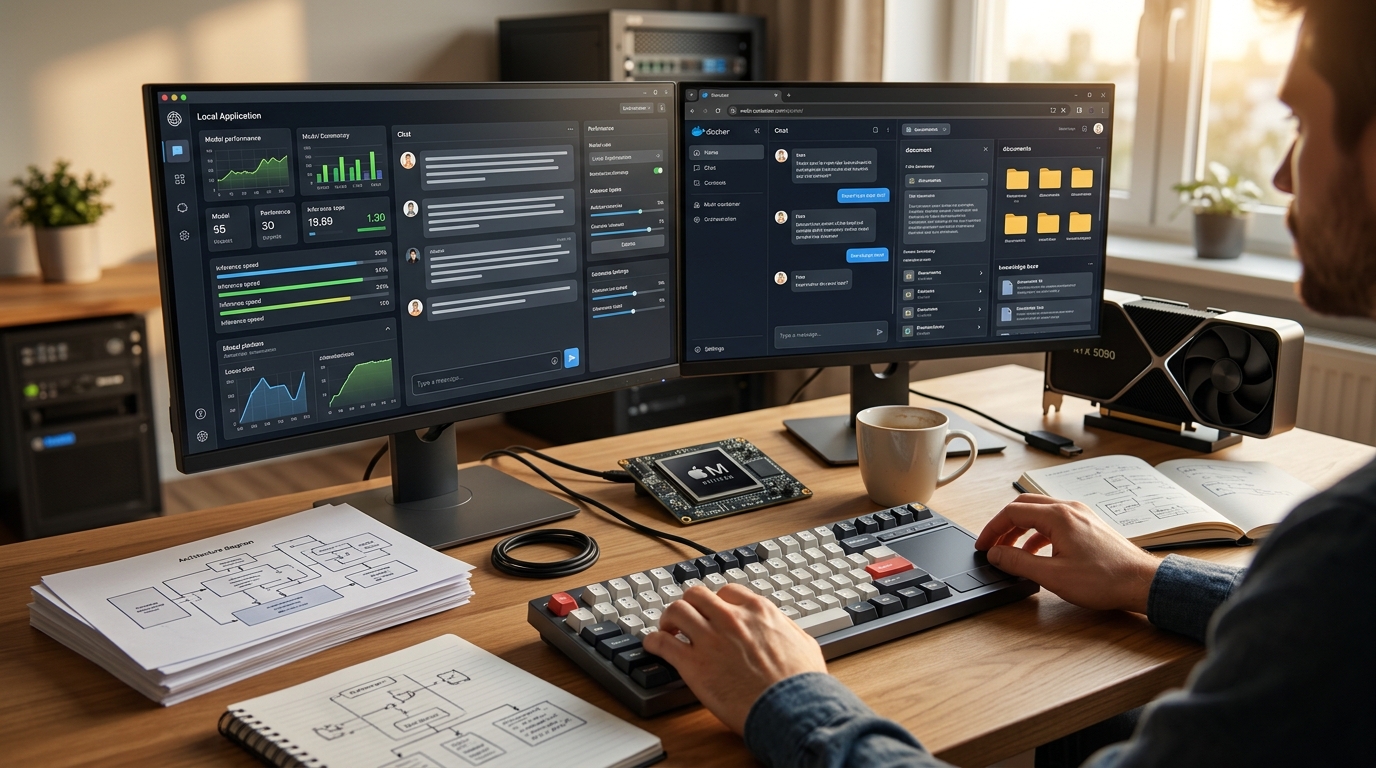
In 2026, the local LLM landscape has evolved from a niche developer playground into a mission-critical enterprise alternative to cloud-based APIs. With the release of highly optimized consumer hardware like the NVIDIA RTX 5090 (32GB VRAM) and Apple’s M5 Max unified memory architectures, running frontier-class models like Qwen 3.6 (27B/35B) and Gemma 4 (31B) at over 50 tokens per second is the new baseline. However, hardware is only half the battle; your execution environment dictates how efficiently those model weights map to physical silicon. Choosing the right frontend interface is critical to unlocking this performance.
When evaluating LM Studio vs OpenWebUI to determine the best local llm client 2026 has to offer, you are not just comparing visual themes or chat aesthetics. You are choosing between two fundamentally distinct architectural philosophies: a streamlined, standalone desktop application versus a highly scalable, Docker-native web orchestration environment. This deep dive will dissect their performance, features, retrieval-augmented generation (RAG) pipelines, and hardware integration to help you build the ultimate local AI stack.
- Architectural Foundations: Standalone Desktop vs. Dockerized Web Container
- LM Studio vs OpenWebUI Features: A Deep-Dive Comparison
- OpenWebUI vs LM Studio RAG: Document Q&A & Knowledge Bases
- Hardware Integration: Apple Silicon (M-Series) vs. NVIDIA CUDA & AMD ROCm
- How to Run Local LLM with UI: Step-by-Step Setup Guides
- Local LLM Server Setup 2026: Headless Orchestration and API Accessibility
- Enterprise Scaling, Governance, and Regional Compliance
- The Performance Bottlenecks of 2026: Memory Bandwidth, VRAM Limits, and Quantization
- TL;DR: Which Local Client Should You Choose?
Architectural Foundations: Standalone Desktop vs. Dockerized Web Container
To understand the fundamental differences between LM Studio and OpenWebUI, we must look beneath the graphical user interface (GUI) and analyze their underlying runtime environments.
+-------------------------------------------------------------------------+ | USER INTERFACE (UI) | | LM Studio (Electron Desktop App) | OpenWebUI (Web Browser) | +-------------------------------------------------------------------------+ | ORCHESTRATION | | Built-in llama.cpp (Local Process) | Docker Container / Python API | +-------------------------------------------------------------------------+ | INFERENCE ENGINE | | Local CPU/GPU (Direct Metal/CUDA) | Ollama / vLLM / SGLang Server | +-------------------------------------------------------------------------+
LM Studio: The Electron-Based Monolith
LM Studio is designed as a standalone, self-contained desktop application built on top of the Electron framework. It packages model discovery, downloading, configuration, and inference directly into a single executable. Under the hood, LM Studio relies on a highly optimized, built-in implementation of llama.cpp.
When you launch LM Studio, it spawns its own local process that directly communicates with your system's hardware APIs (CUDA, Metal, or Vulkan). This monolithic design offers a zero-dependency installation experience. However, Electron apps are notorious for their system memory overhead. In a local LLM context, every megabyte of system RAM consumed by a bloated desktop wrapper is a megabyte that cannot be allocated to your model's Key-Value (KV) cache or system swap space.
OpenWebUI: The Docker-Native Microservice
OpenWebUI takes a completely opposite approach. It is a lightweight, responsive web application designed to run inside a Docker container. It does not perform inference itself; instead, it acts as a highly advanced frontend client that interfaces with external inference engines, primarily Ollama, but also vLLM, SGLang, or any OpenAI-compatible API endpoint.
This decoupled, microservice architecture means OpenWebUI runs completely independently of the model server. You can host OpenWebUI on a low-power laptop while it queries a headless, multi-GPU server running Ollama or vLLM in your closet. Because it runs inside a browser, it eliminates Electron’s desktop-level memory overhead on the host machine, reserving 100% of the server's resources for raw tensor calculations.
LM Studio vs OpenWebUI Features: A Deep-Dive Comparison
When evaluating lm studio vs openwebui features, the choice depends heavily on whether you are a single developer testing models or an IT architect building a collaborative workspace.
| Feature / Metric | LM Studio | OpenWebUI |
|---|---|---|
| Primary Architecture | Standalone Desktop App (Electron) | Dockerized Web Container |
| Underlying Inference Engine | Built-in llama.cpp |
External (Ollama, vLLM, SGLang, OpenAI) |
| Multi-User Support | No (Single User Local Only) | Yes (Full RBAC, Admin Panel, Shared Chats) |
| Model Discovery & Download | Integrated Hugging Face Search | Pulls via Ollama or manual GGUF uploads |
| Multi-Model Concurrency | Supported (VRAM permitting) | Supported (Managed via backend engine) |
| Model Context Protocol (MCP) | Supported natively | Supported via community tools & integrations |
| API Accessibility | Localhost OpenAI-compatible server | Exposes full REST API of backend engine |
| System Resource Overhead | Moderate (Electron wrapper) | Extremely Low (Browser-based, lightweight Docker) |
| Extension Ecosystem | Limited | Extensive (Pipelines, custom tools, web search) |
Model Discovery and Management
LM Studio excels at model discovery. It features an integrated Hugging Face search engine that allows you to search for any GGUF model, filter by quantization size, and download it with a single click. It automatically detects your hardware configurations and suggests the optimal quantization level that will fit into your VRAM.
OpenWebUI relies on its backend (typically Ollama) for model management. While Ollama has a robust library, pulling a non-standard or newly released model often requires using the command line (ollama run <model_name>) or manually creating a Modelfile. For rapid prototyping of obscure Hugging Face quants, LM Studio’s visual interface is unmatched.
Multi-User Collaboration and Enterprise Readiness
This is where OpenWebUI leaves LM Studio far behind. OpenWebUI was built from day one with multi-user environments in mind. It features a complete admin panel, Role-Based Access Control (RBAC), user registration systems, and the ability to share custom system prompts, knowledge bases, and chat histories across an entire team.
LM Studio is strictly a single-user application. While it can expose a local port to mimic an OpenAI-compatible API, it offers no user authentication, logging, or collaborative features. It is a developer's sandbox, whereas OpenWebUI is an enterprise-grade portal.
OpenWebUI vs LM Studio RAG: Document Q&A & Knowledge Bases
For many organizations, the deciding factor between these two clients is how they handle proprietary data ingestion. Evaluating openwebui vs lm studio rag reveals a massive gap in maturity and architectural design.
OpenWebUI RAG Pipeline: [User Uploads PDF] │ ▼ [Document Parsing / OCR] ──> [Text Chunking (e.g., 1024 tokens)] │ ▼ [Local Embedding Model] ──> [Vector DB (Chroma/Qdrant)] │ ▼ [Query Retrieval] ──> [Augmented Prompt to Local LLM (Ollama/vLLM)]
OpenWebUI: The Production-Grade RAG Pipeline
OpenWebUI features a fully integrated, production-ready Retrieval-Augmented Generation (RAG) pipeline. When you upload a document (PDF, TXT, CSV, or DOCX), OpenWebUI automatically processes it through the following steps:
1. Document Parsing: It extracts text from the document, including OCR capabilities for scanned images and PDFs.
2. Chunking: It breaks the text down into configurable token chunks (e.g., 1024 tokens) to preserve context.
3. Embedding: It uses a local embedding model (like all-minilm or a specialized Qwen-VL model) to convert those chunks into vector embeddings.
4. Vector Storage: It stores these embeddings in an integrated vector database (such as Chroma or Qdrant).
5. Query Retrieval: When you ask a question, it performs a similarity search, retrieves the top-K relevant chunks, and injects them directly into the LLM's context window.
This entire process is managed visually. You can create persistent "Knowledge Bases" that can be toggled on or off for specific chats, or tagged in a conversation using the # symbol (e.g., #finance-report-2025 What was our Q4 margin?).
LM Studio: Basic File Ingestion
LM Studio’s approach to RAG is far more rudimentary. While recent updates have added the ability to attach files to a chat, it generally loads the entire parsed text directly into the active context window rather than managing a persistent vector database.
If you attach a 200-page PDF in LM Studio, it will attempt to shove the entire document into your model's active context. On a 24GB GPU, this will rapidly exhaust your VRAM, leading to severe slowdowns or out-of-memory (OOM) crashes. LM Studio lacks the sophisticated chunking, embedding, and vector database retrieval mechanics that make OpenWebUI a viable option for large-scale document analysis.
Hardware Integration: Apple Silicon (M-Series) vs. NVIDIA CUDA & AMD ROCm
Your choice of client should be heavily influenced by your underlying silicon. Different operating systems and GPU architectures interact uniquely with these frontends and their backends.
Apple Silicon: The Unified Memory Powerhouse
For users running Apple M3, M4, or the flagship M5 Max/Ultra systems, unified memory is a superpower. Because the CPU and GPU share the same memory pool, a Mac Studio with 256GB or 512GB of unified memory can run massive models like Qwen 3.5 397B or MiMo v2.5 at 512K context windows—feats that would require tens of thousands of dollars in dedicated enterprise GPUs on PC.
- LM Studio on macOS: LM Studio is exceptionally well-optimized for macOS. It leverages Apple’s Metal framework natively, allowing for highly efficient, near-zero-latency tensor offloading. It is a seamless, plug-and-play experience on macOS.
- OpenWebUI on macOS: While OpenWebUI runs beautifully in a browser on Mac, the underlying Ollama backend must be running. Ollama on Mac also utilizes Metal acceleration, but running OpenWebUI inside Docker on macOS can introduce slight networking and volume-mounting overhead compared to native execution.
NVIDIA CUDA & AMD ROCm: Raw Compute Speed
On Windows and Linux systems running dedicated desktop GPUs (like dual RTX 3090s or the RTX 5090), raw memory bandwidth and CUDA cores dictate performance.
- Multi-GPU Tensor Splitting: If you run a dual-GPU setup, LM Studio allows you to visually configure your tensor splits (e.g., splitting a model 50/50 across GPU 0 and GPU 1). However, as noted by power users on r/LocalLLaMA, asymmetric tensor splits (e.g., 0.35/0.65) can break advanced features like Multi-Token Prediction (MTP) draft KV caches under real desktop load.
- Headless VRAM Recovery: One major drawback of LM Studio on Windows is that it must run on your primary display machine. Your operating system, browser, and desktop environment (Xorg/Windows Desktop) easily consume 2.5GB to 4GB of VRAM on GPU 0, capping your maximum layers (NGL) and causing OOMs on large models.
By contrast, a local llm server setup 2026 utilizing OpenWebUI allows you to run your models completely headless on a dedicated server (using vLLM or Ollama on Linux), completely bypassing display-server VRAM allocation. This recovers precious gigabytes of VRAM, allowing you to run larger quantizations (such as Qwen 3.6 27B FP8 instead of Q4_K_M) or significantly expand your active context window.
How to Run Local LLM with UI: Step-by-Step Setup Guides
If you are wondering how to run local llm with ui, here are the two most robust deployment pathways for 2026.
Option A: Setting Up LM Studio (The 3-Minute Desktop Path)
Best for local, single-user experimentation on a workstation or laptop.
- Download the Installer: Navigate to the official LM Studio website and download the package for your OS (Windows, macOS, or Linux AppImage).
- Install the Application: Run the installer and follow the standard wizard prompts.
- Search for a Model: Open the app, click on the search icon (magnifying glass), and type
Qwen/Qwen3.6-27B-Instruct-GGUForGemma-4-31B-it-GGUF. - Download the Quant: Select a quantization level. If you have 24GB of VRAM, select the
Q4_K_MorQ5_K_Mversion. - Load and Chat: Go to the chat interface, select the downloaded model from the top dropdown, configure your hardware settings (ensure GPU Offload is set to Max), and start chatting.
Option B: Setting Up OpenWebUI via Docker (The Robust Server Path)
Best for production environments, RAG pipelines, and multi-user configurations.
bash
Step 1: Ensure Ollama is installed and running on your host machine
(If running Ollama locally on Windows/macOS, ensure the app is open)
Step 2: Run the OpenWebUI Docker container with GPU support and automatic Ollama linking
docker run -d -p 3000:8080 \ --add-host=host.docker.internal:host-gateway \ -v open-webui:/app/backend/data \ -e OLLAMA_BASE_URL=http://host.docker.internal:11434 \ -e WEBUI_AUTH=true \ --name open-webui \ --restart always \ ghcr.io/open-webui/open-webui:latest
Once the container is running, open your browser and navigate to http://localhost:3000. You will be prompted to create an administrator account. From there, any models pulled via your Ollama instance (ollama pull qwen2.5:7b) will instantly populate in the OpenWebUI model selection dropdown.
⚠️ Warning for Enterprise Deployments: By default, many Docker guides omit authentication. Always include
-e WEBUI_AUTH=truein your Docker run command to prevent unauthorized access to your local network and model endpoints.